











Print Ordering Process at In Quảng Cáo Q7: 6 Steps From Quote to Invoice
The process has 6 steps, but you only need to do 4 things: send your request, transfer the payment, choose how to receive the goods and send invoice details. At every step the workshop messages you on Zalo with a button; just tap it to finish.
TAP EACH STEP TO SEE THE GUIDE
| Step | What you do | What In Quảng Cáo Q7 does |
|---|---|---|
| 1. Consultation and quote | Message our Zalo OA, send files and a description | Check files, advise, quote |
| 2. Order & QR code | Check the order slip | Create the order, send the order slip, QR code and order link |
| 3. Payment | Scan the QR code, transfer (do not edit the transfer note) | Payment confirmed automatically, order moved to production, Zalo message sent |
| 4. Production | Nothing to do | Printing and finishing; Zalo message when printed |
| 5. Delivery | Choose pick-up or enter delivery details | Books delivery automatically, messages on Zalo when a driver is assigned |
| 6. E-invoice | Send invoice details within 24 hours | Issue the invoice and send it to your email |
Step 1 · Consultation and Quote
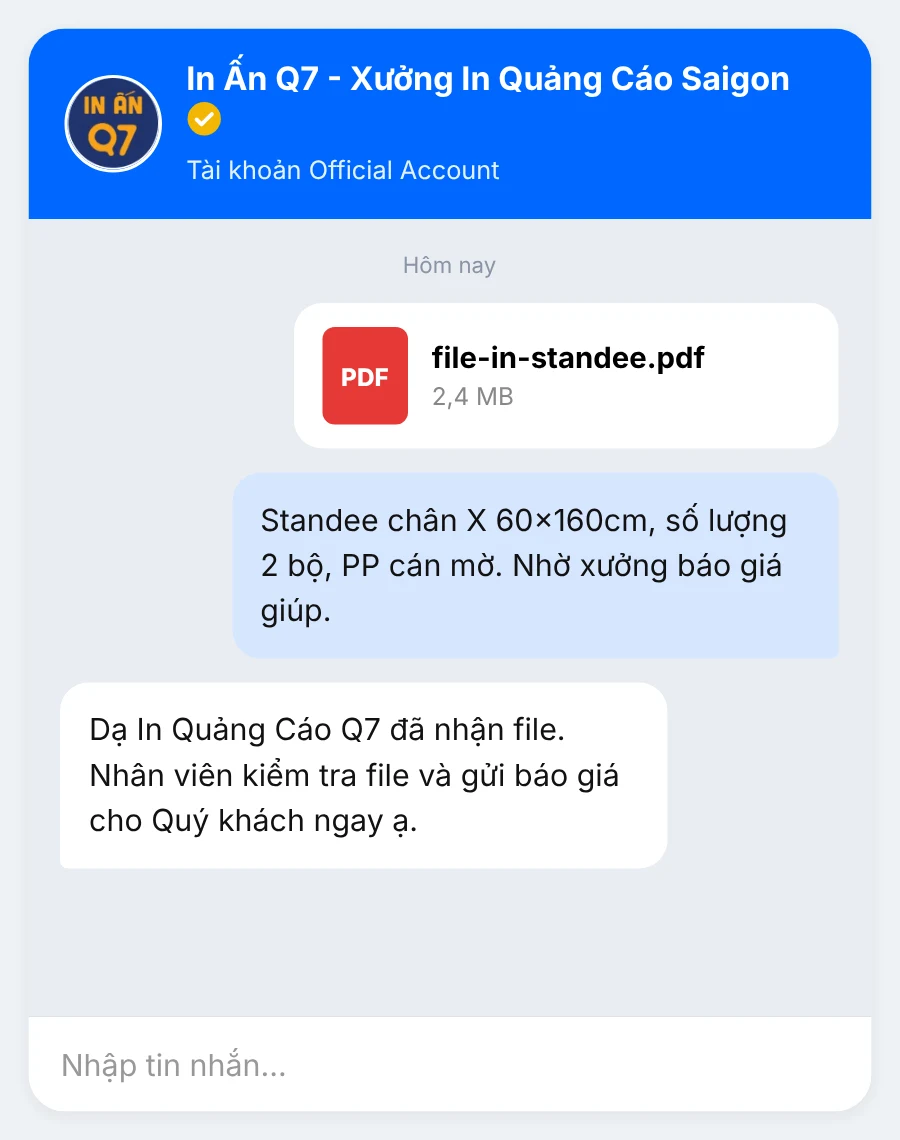
Message Zalo OA of the workshop, then send files and a description.
Checks the files, advises on specifications and sends the quote in the chat.
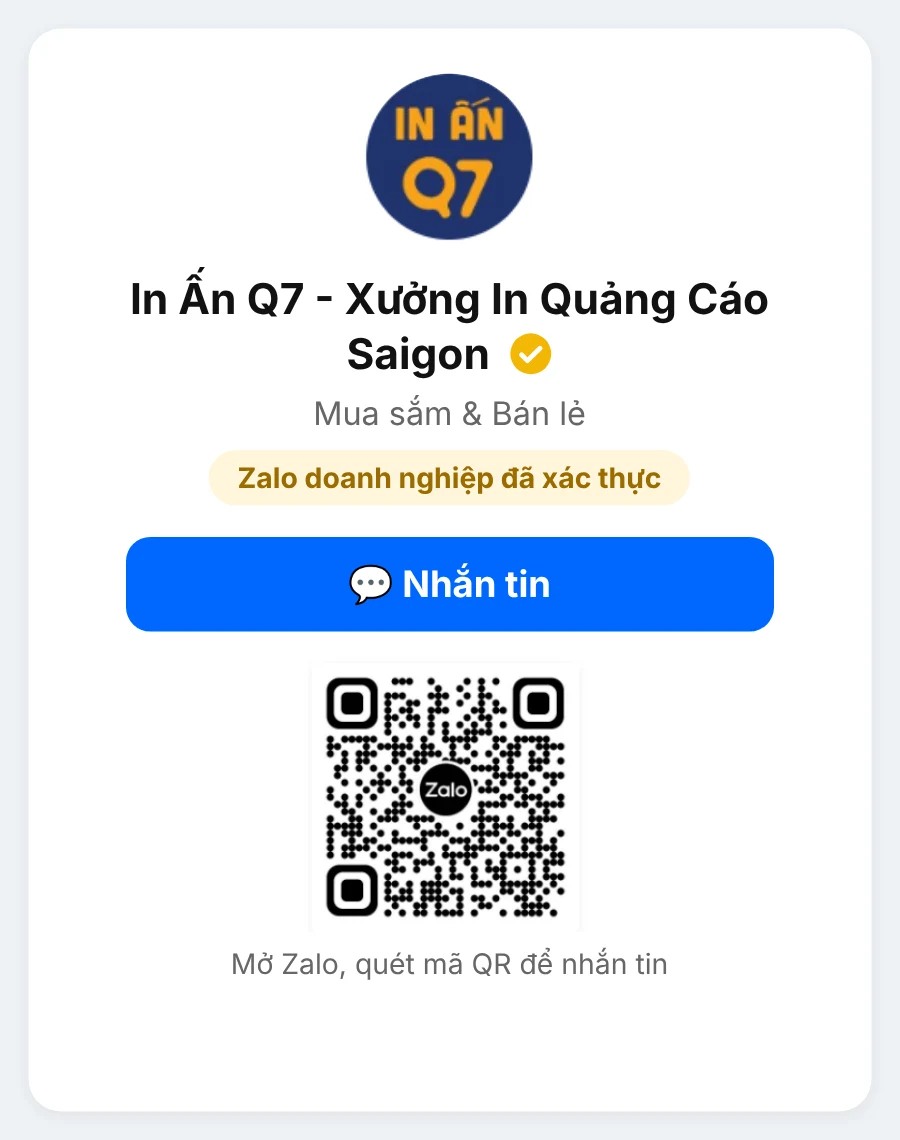
Zalo OA is the Zalo business account of the workshop, named In Ấn Q7 – Xưởng In Quảng Cáo Saigon, with a yellow verification tick. Please include:
- Product to print, size and quantity.
- Material or finish type (if known).
- When you need the goods.
- Design files or reference images.
Tap an image to enlarge
📁 Preparing print files
- High-quality files: Original PDF or AI, CMYK colour mode, 300dpi (large formats from 1m up only need 100–150dpi).
- Standard-quality files or images: PDF, PNG, JPG.
- If you don't have a file: send the content, logo and sample images for the workshop to design; the workshop quotes the design fee before starting.
- Details: looked at file submission guide.
⚠️ Need urgent printing within 2 hours, 4 hours or the same day? Say so clearly in your first message so staff can quote and help.
You receive: specifications, price and instructions for confirming the print order.
Step 2 · Order & Payment QR Code
Check the order slip carefully before paying.
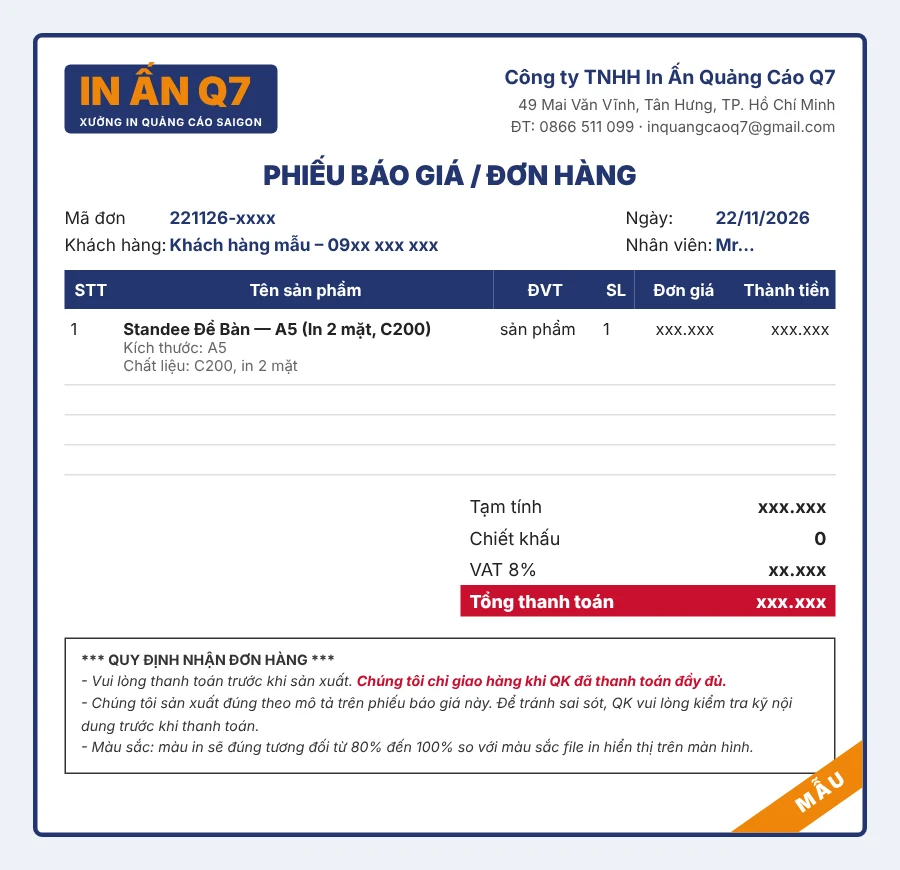
Creates the order and sends all 3 parts via Zalo: the order slip, the QR code and the order link.
- Order slip: product, specifications, quantity, total (8% VAT included).
- QR payment slip: a QR code with the amount and transfer note pre-filled.
- Order link: open it to see the order, payment terms and order status.
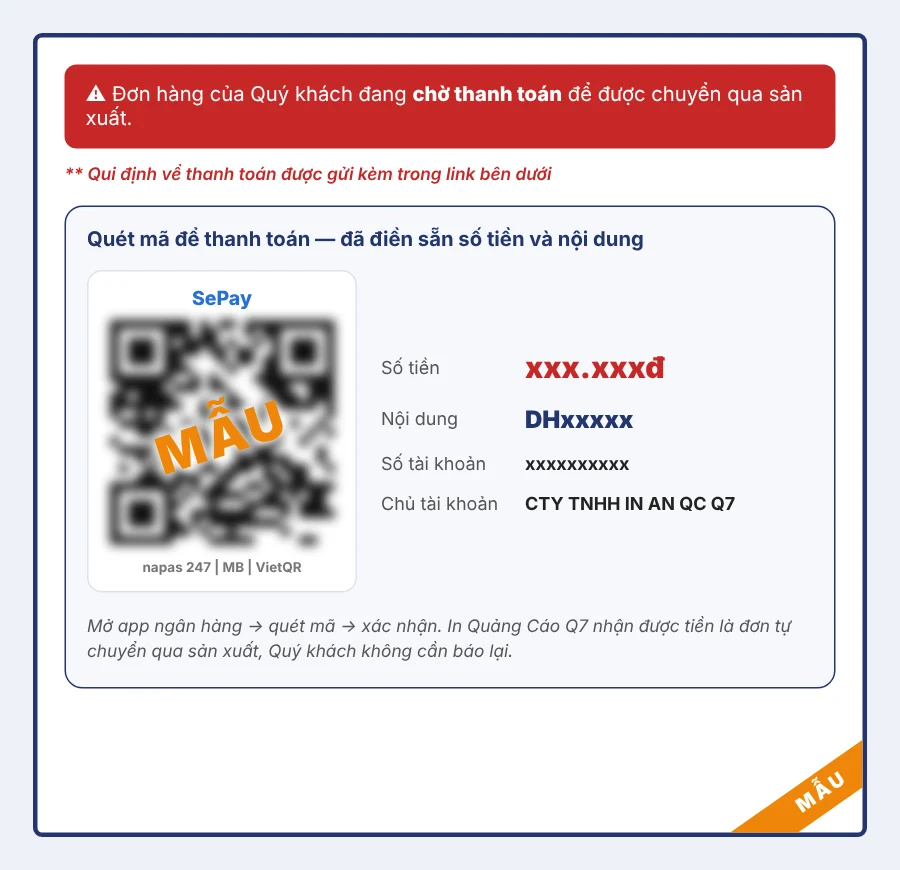
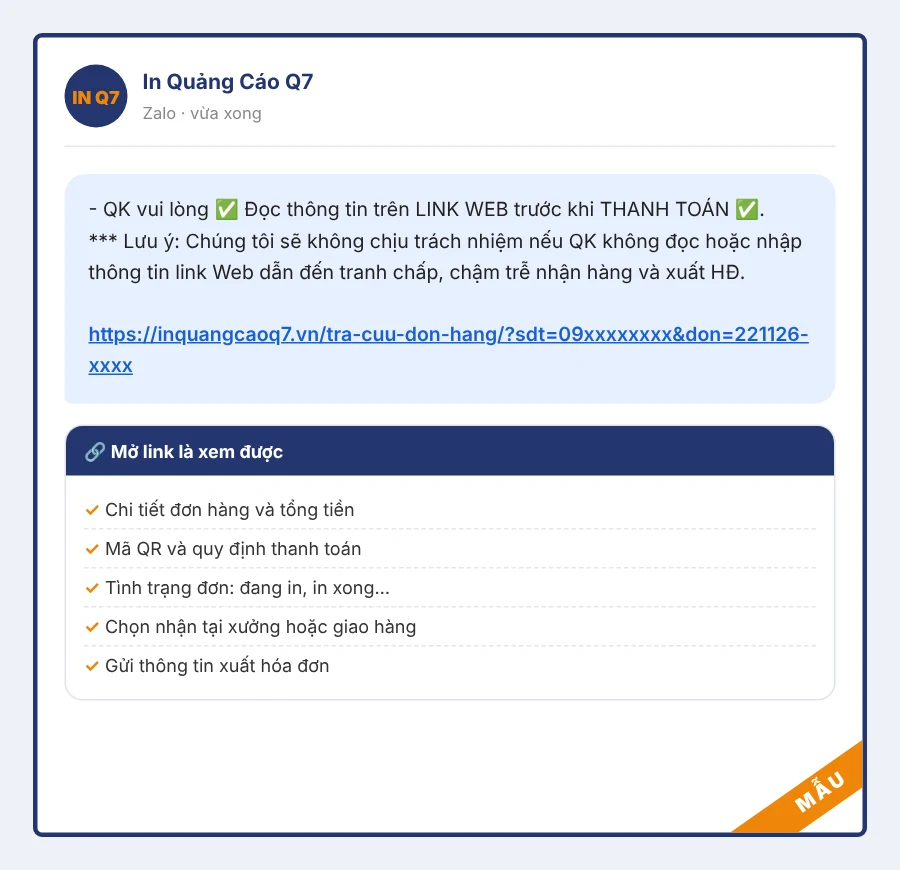
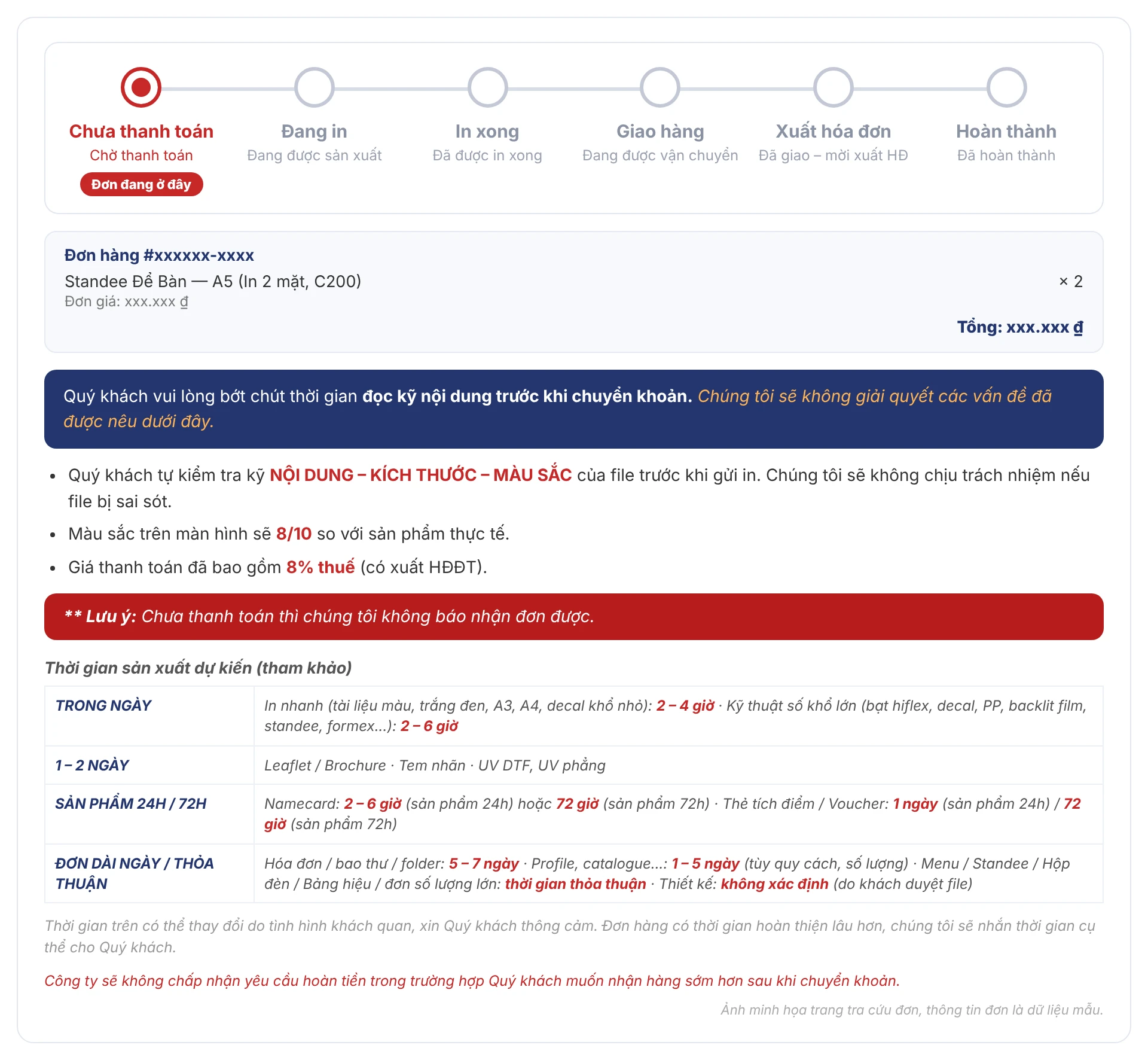
Tap an image to enlarge
Open the link: the order is in the status Unpaid; the order moves to production only after payment.
Wrong specifications or want to change the content? Message staff before paying to have the order updated.
You receive: a checked order and a QR code for payment.
Step 3 · Payment
Open your banking app, scan the QR code and confirm. Do not edit the transfer note (so the system matches the right order automatically). No need to send a screenshot of the transfer.
The system records the payment automatically, moves the order to production and sends a Zalo confirmation.
- Orders under 1 million VND: pay 100%.
- Orders from 1 million VND: 50% deposit, the rest paid before receiving the goods.
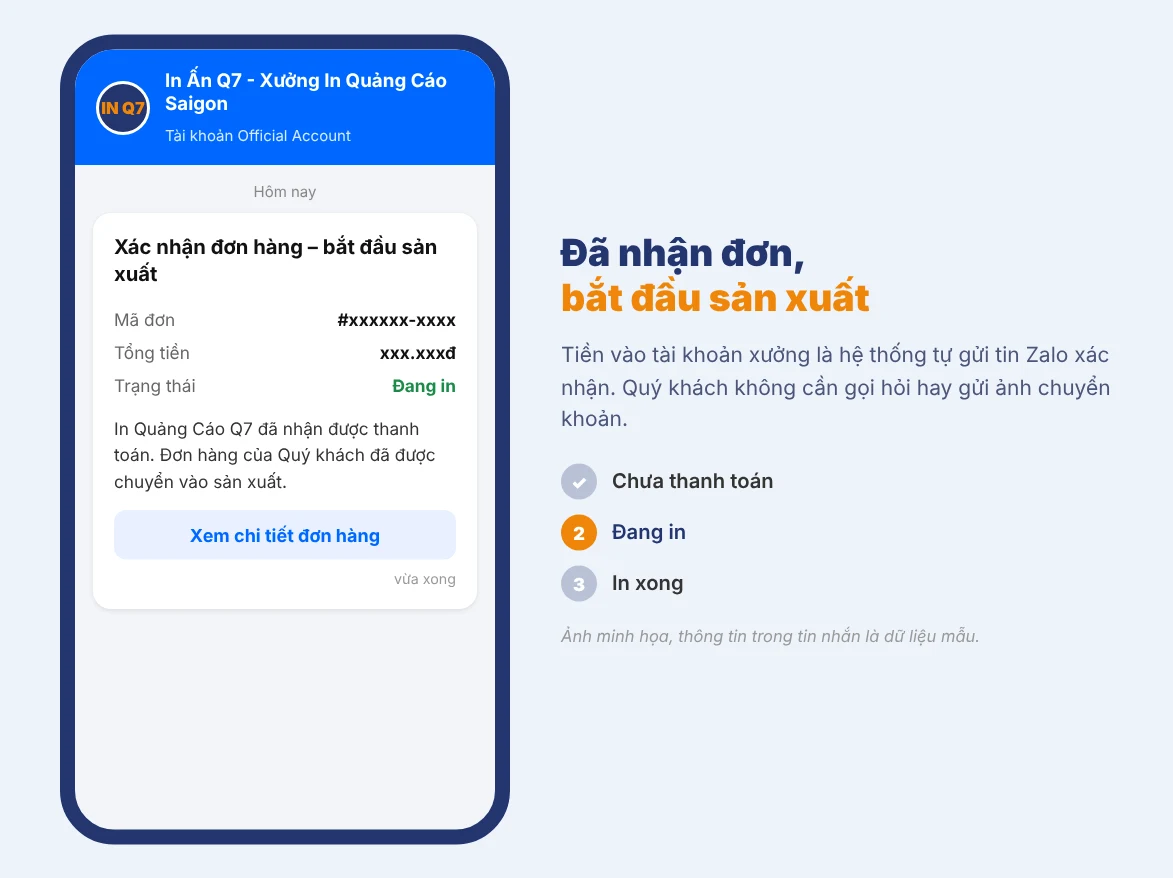
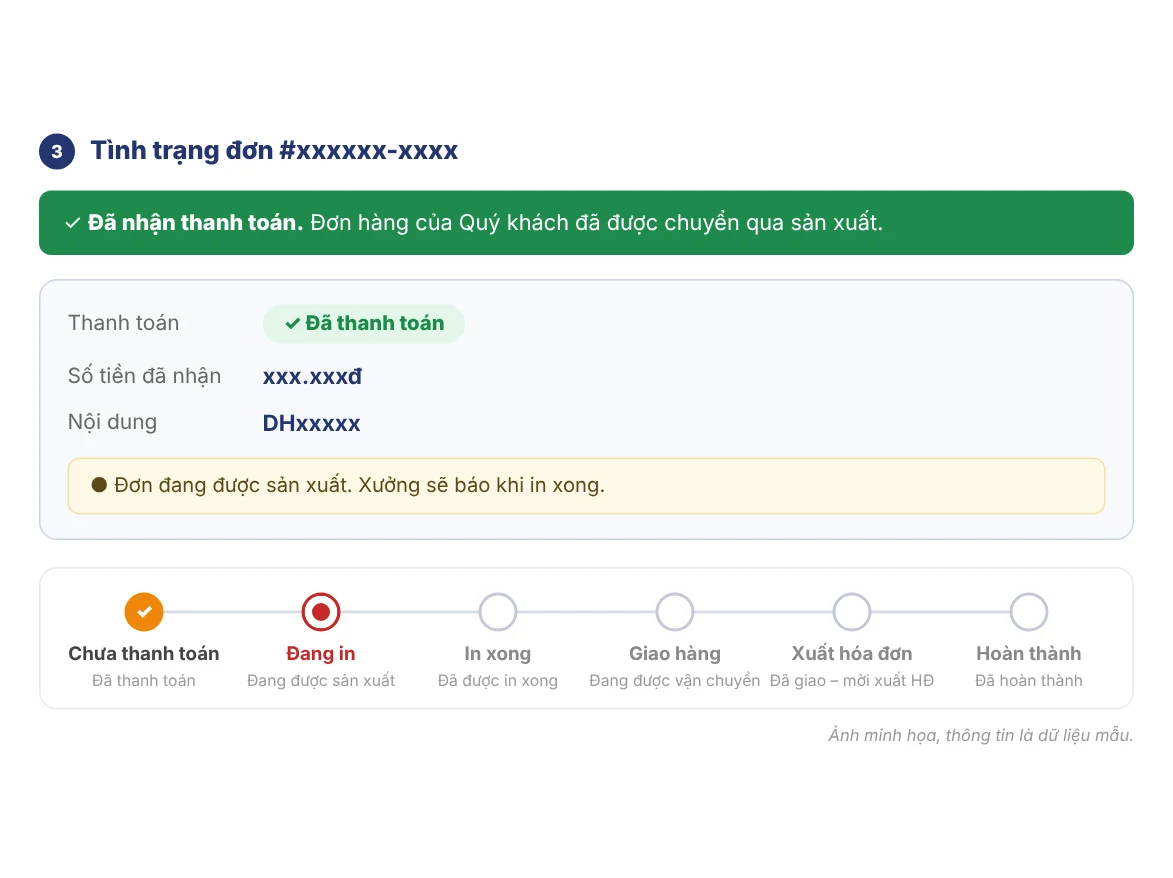
Tap an image to enlarge
Transferred but no update yet? Open the order link to check; if it is still not there, message on Zalo with the order code so staff can help.
You receive: a Zalo message confirming payment, and the order moves to Printing.
Step 4 · Production
Nothing to do. Wait for the Zalo message saying printing is done.
Prints and finishes according to the order slip, and messages on Zalo as soon as printing is done.
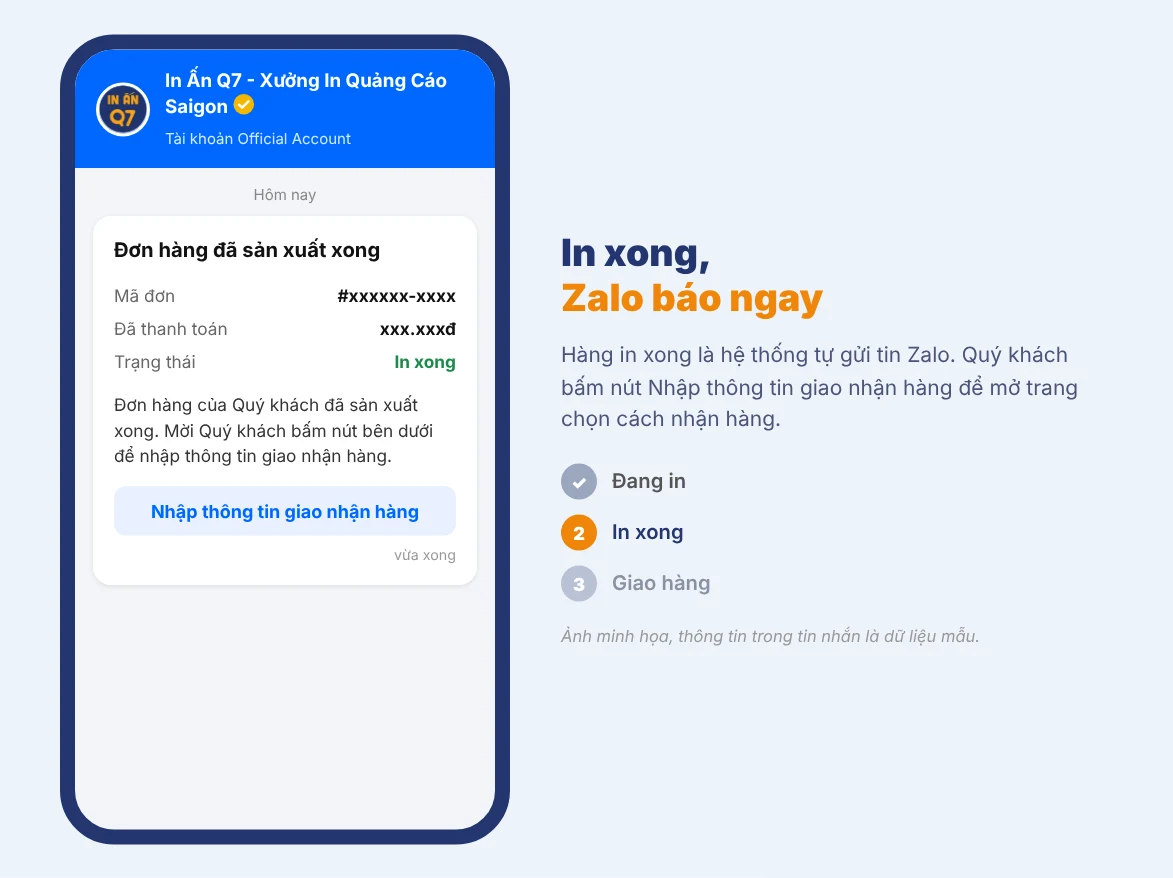
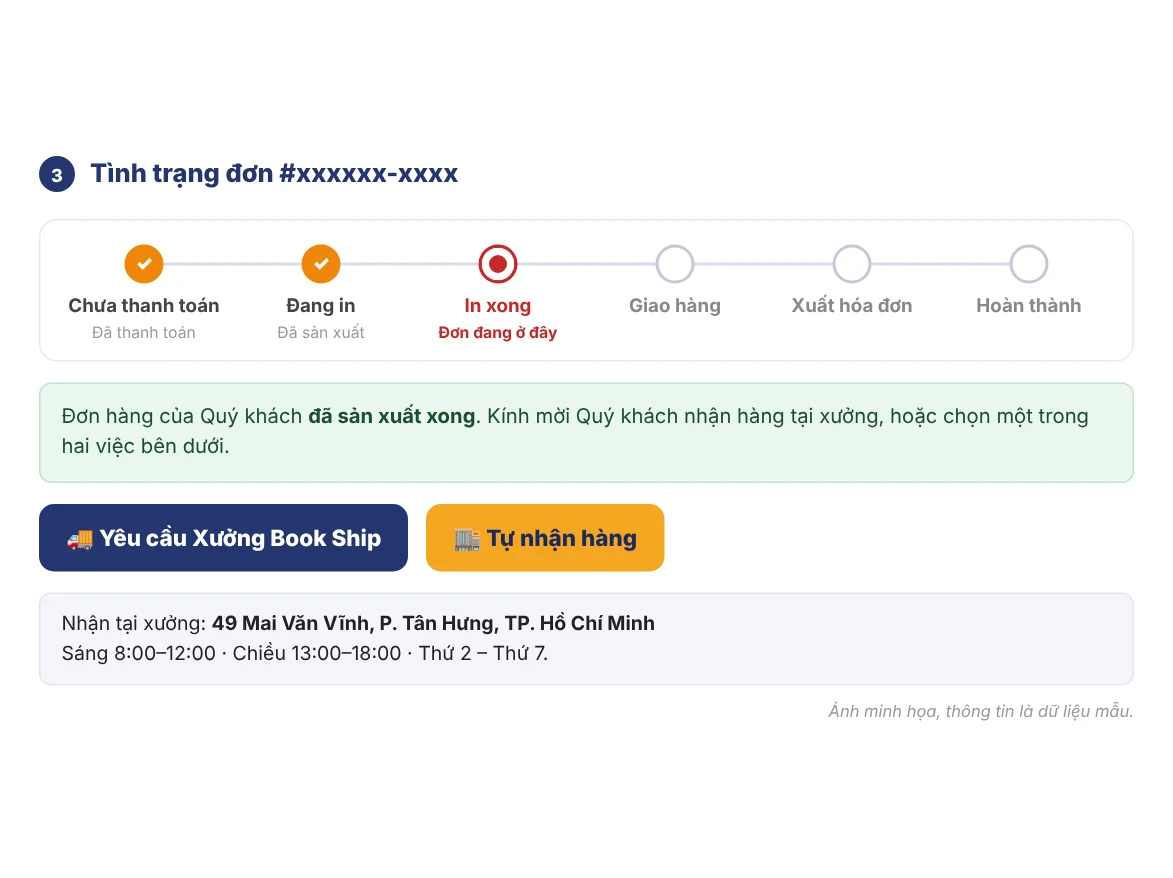
Tap an image to enlarge
Remember: once the order is Printed, you can already send invoice details (Step 6) without waiting to receive the goods.
You receive: a notice that printing is done, with a link to choose how to receive the goods.
Step 5 · Delivery
Choose the Self pick-up or Ask the Workshop to Book Delivery on the order page.
Books delivery as soon as you send the details and messages on Zalo when a driver accepts the trip.
🏬 Self pick-up
Tap Self pick-up, then come to the workshop:
49 Mai Van Vinh, Tan Hung Ward, Ho Chi Minh City
8:00–12:00 · 13:00–18:00 · Monday – Saturday.
If the order still has an outstanding balance, pay it before pick-up.
🚚 Ask the Workshop to Book Delivery
⚠️ Condition: the order has been paid in full (100%).
- Tap Ask the Workshop to Book Delivery.
- Choose the Inner Ho Chi Minh City (motorbike, same-day delivery) or Other provinces / cities (Giao Hang Nhanh courier).
- Type the street name, pick the address from the suggestions (other provinces: choose the province, district and ward, then enter the house number).
- Enter the recipient's phone number, tap Request delivery.
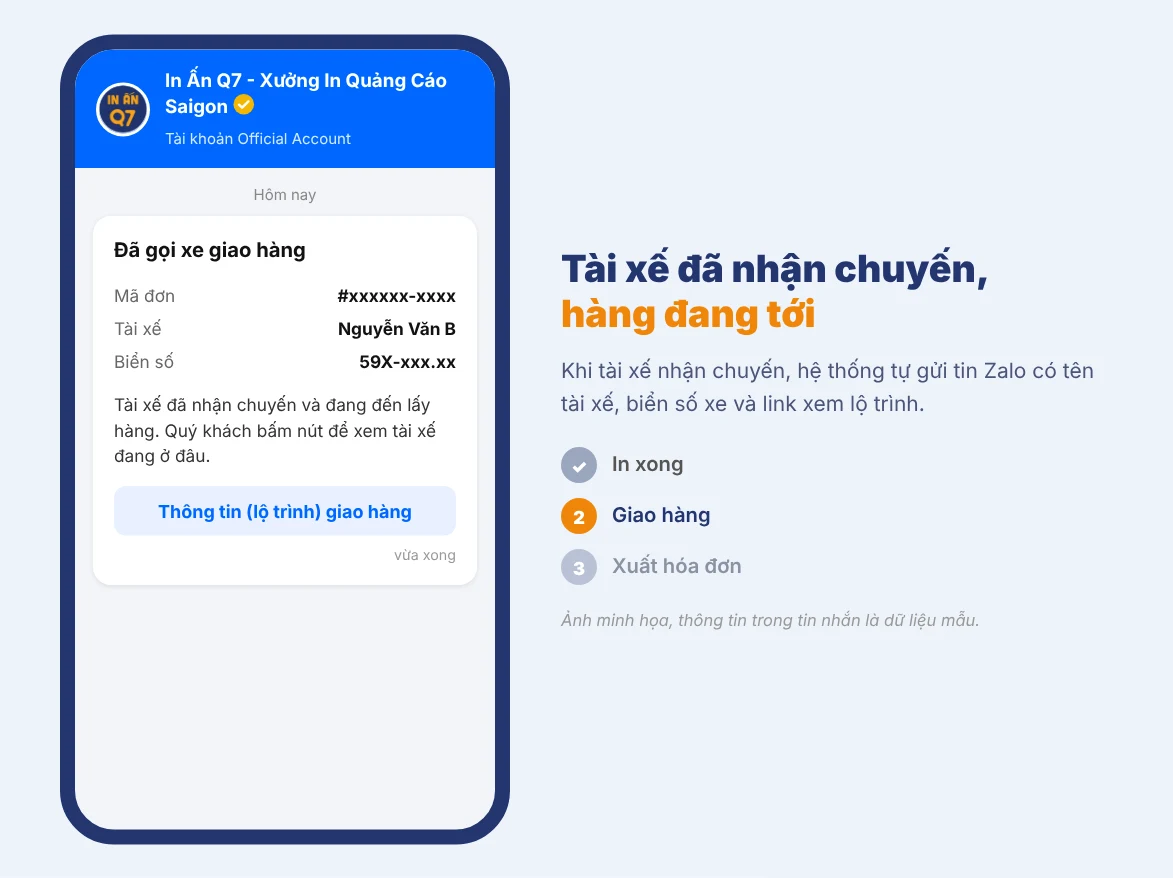
✓ Automatic delivery booking: once sent, the system calls a driver (inner city) or creates a waybill (other provinces) automatically. No need to message the workshop again.
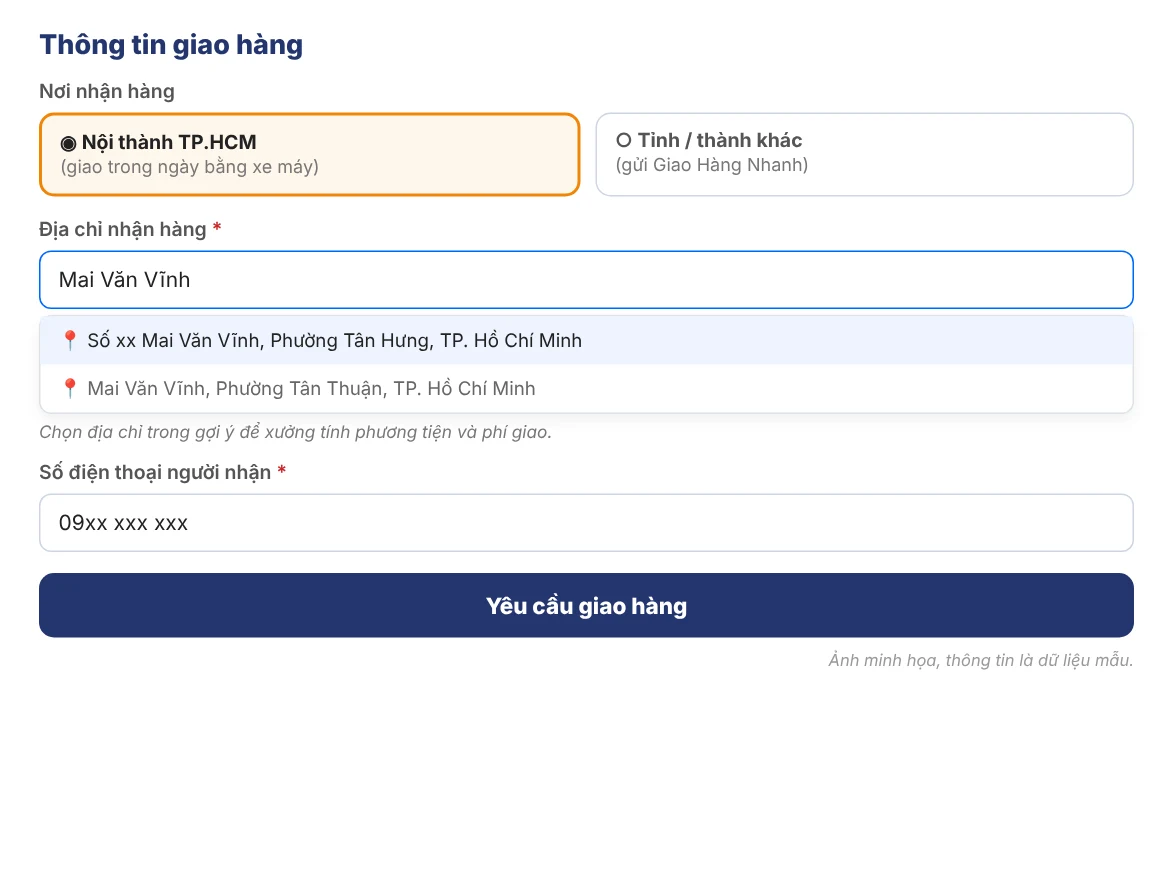
Tap an image to enlarge
🕗 Delivery notes
- Deliveries only during 8:00–12:00 and 13:00–18:00, Monday – Saturday.
- Requests sent after 11:30 move to the afternoon, after 17:30 move to the morning of the next working day.
- Orders to other provinces: track the journey with the Giao Hang Nhanh waybill code.
You receive: the goods at the workshop, or a Zalo message with the driver, licence plate and a route tracking link.
Step 6 · E-invoice
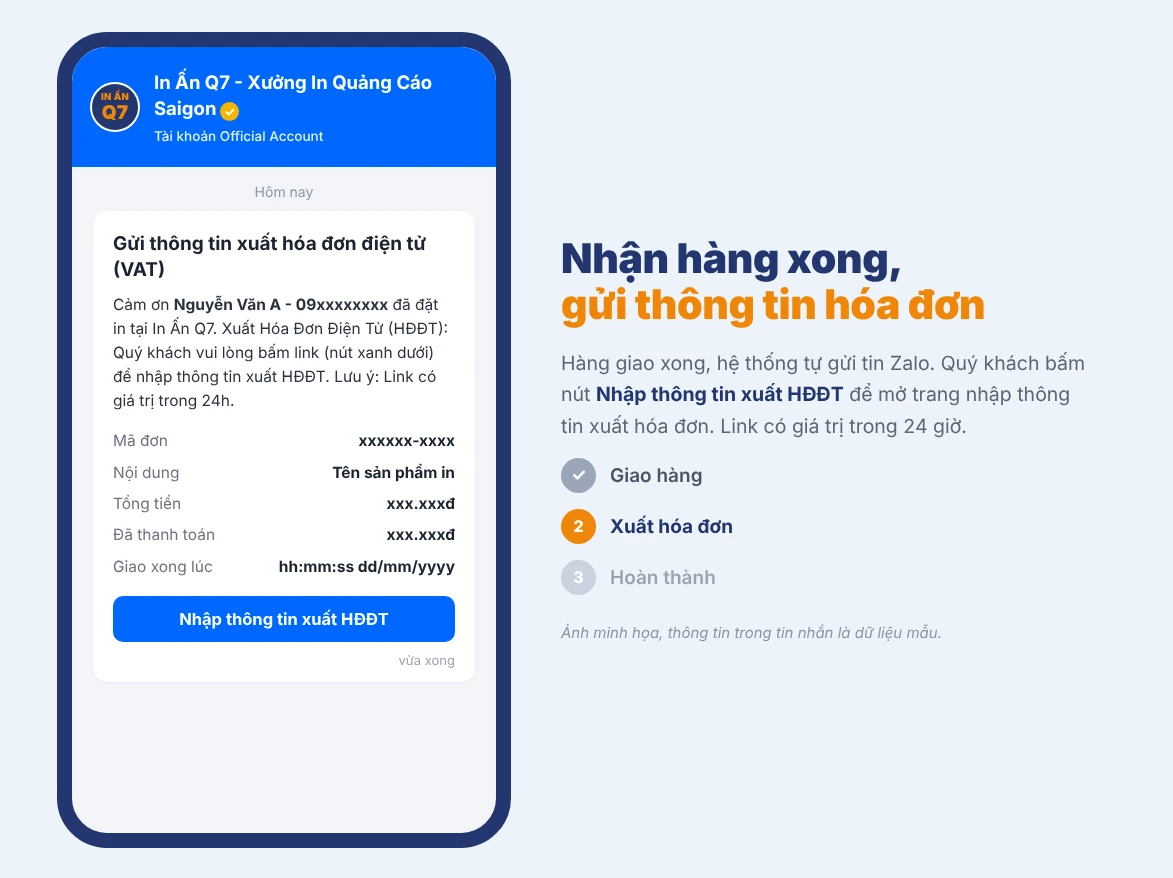
Send invoice details within 24 hours after receiving the goods.
Issues the e-invoice (8% VAT) within 24 working hours and sends it to your email.
📌 When can I submit?
- Once the order is Printed you can submit, whether or not you have received the goods.
- Orders not yet printed cannot be submitted.
Tap an image to enlarge
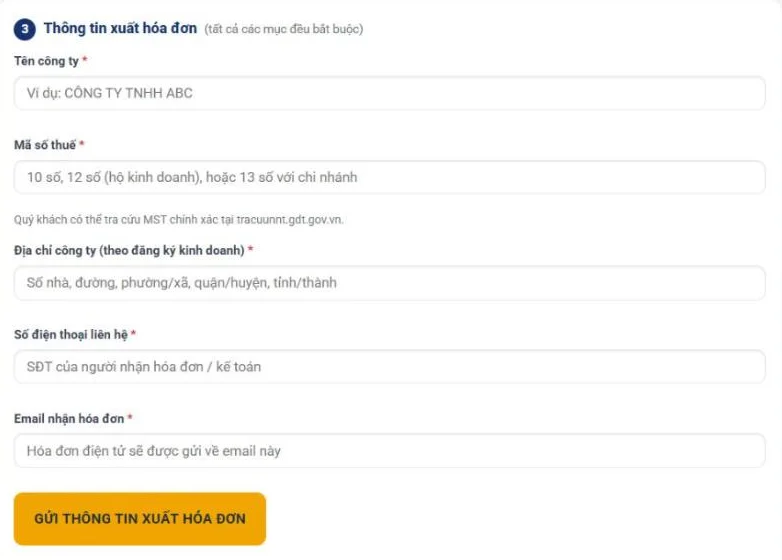
Tap the button in the Zalo message or go to the page E-invoice (VAT) details: enter the phone number used to order → select the order → choose Individual or Business → fill in the details → tap Send. If you have had an invoice issued by the workshop before, tap Use these details to fill it in again.
🏢 Business (all fields required)
- Company name
- Tax code: 10 digits, 12 digits (household business) or 13 digits (branch). Look up tax codes at tracuunnt.gdt.gov.vn
- Address as in the business registration
- Phone number of the accountant / invoice recipient
- Email to receive the invoice
👤 Individual
- Full name (required)
- Phone number (required)
- Address, email (optional)
⚠️ Important notes
- If 24 hours pass after receiving the goods without the details, the workshop automatically issues a retail customer invoice (without company name or tax code).
- Once the invoice is issued, the order moves to Completed: the invoice cannot be adjusted or reissued, even if the details are wrong, you did not tap the link to enter details, or entered them incorrectly.
- Please check very carefully before tapping send.
You receive: the e-invoice sent to your email, and the order moves to Completed.
Frequently Asked Questions
Do I need to send a screenshot after transferring?
No. When the payment arrives, the system confirms it automatically and messages you on Zalo.
What if I lose the order link?
Go to Order tracking, enter the phone number used to order to view orders from the last 90 days.
Can I still see progress if I do not receive Zalo messages?
Yes. You can still see the full status on the Order tracking page.
Want to change the delivery address?
Message on Zalo or call the hotline before the workshop books the driver for help.
Ready to Order?
Send your file or describe your request. In Quảng Cáo Q7 checks it and advises on suitable specifications before quoting.
In Ấn Q7 – Xưởng In Quảng Cáo Saigon
Address: 49 Mai Van Vinh, Tan Hung Ward, Ho Chi Minh City
Hotline: 0866.511.099
View directions to the workshop on Google Maps
Images on this page are illustrations; order codes, amounts and customer details are sample data.