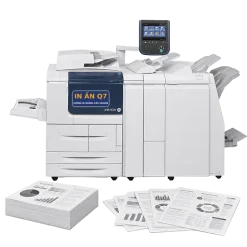
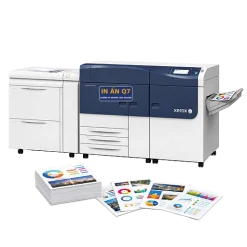
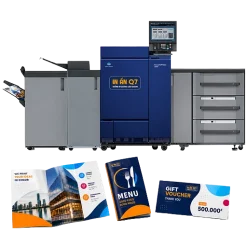
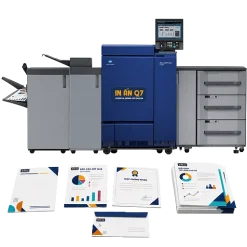
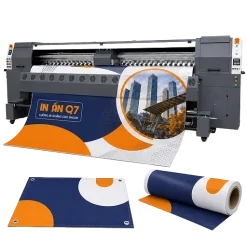
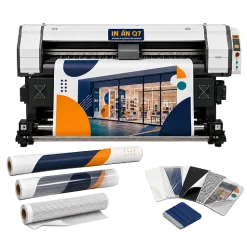
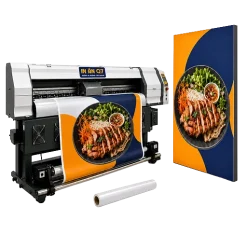

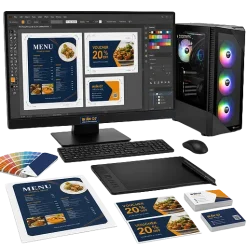

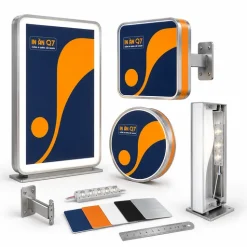


PDF is safest, or the original AI file. If you only have a Word file or a JPG image, you can still send it and In Quảng Cáo Q7 will handle it.
Preparing and sending design files
Not good at design? No problem — just send the file you have, and In Quảng Cáo Q7 will check it for free and let you know if anything needs adjusting. The tips below help you check it yourself first to save time; do what you can, and In Quảng Cáo Q7 will help with the rest.
Six things to check before sending
These are the issues In Quảng Cáo Q7 sees most often. Each one you check makes your order faster; anything you can't check, In Quảng Cáo Q7 reviews when we receive the file.
Printers use CMYK while screens use RGB, so printed colors are usually duller. If you can't convert it, let In Quảng Cáo Q7 know and we will make a test print.
Small formats should be 300dpi; large formats from 1m only need 100–150dpi. If you're unsure whether an image is sharp enough, send it first for In Quảng Cáo Q7 to check.
Extend the background and images about 3mm beyond the cut line. If you're not used to this step, In Quảng Cáo Q7 can add it when checking the file.
Keep text and logos a safe distance from the edge: 3mm for small formats, 5cm for formats of 1m or more.
If you use an unusual font, remember to convert to outlines or attach the font file. Otherwise our machines will substitute a different font.
Notes by product group
Each group has its own specifics. Just read the part related to what you need printed — for everything else, send the file and In Quảng Cáo Q7 will review it and discuss with you.
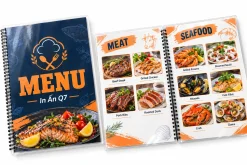
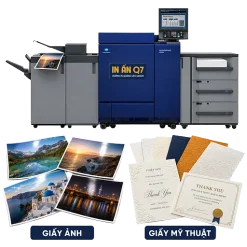
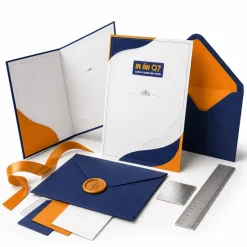
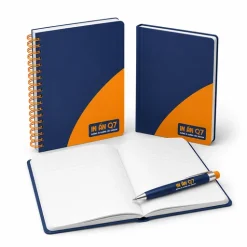
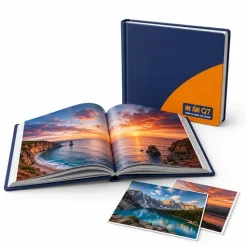
Fast printing · Documents · Business cards · Invoice books
- Small formats should be 300dpi for sharp text.
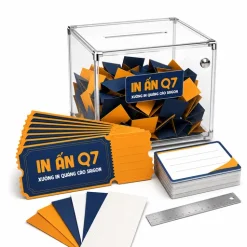
- Business cards and labels should have bleed on all four edges, because batch trimming can shift 1–2mm.
- Combining multi-page documents into one continuous PDF avoids page order mix-ups when printing.
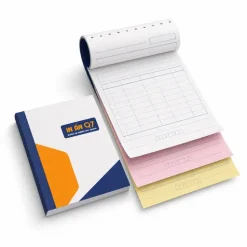
- For numbered invoice books, please note the start and end numbers and In Quảng Cáo Q7 will set them up.
- If you don't know which paper to choose, describe where it will be used and In Quảng Cáo Q7 will suggest the best type.
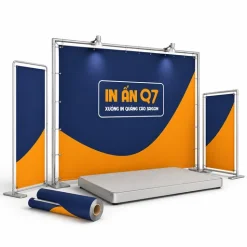
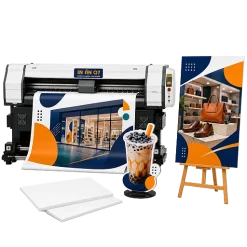
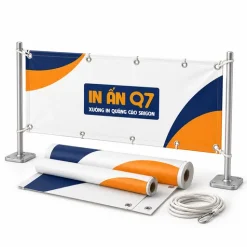
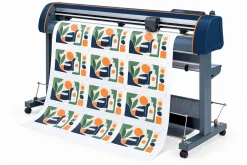
Large format · Hiflex · PP · Decal · Backdrops · Banners
- Large formats don't need 300dpi — 100–150dpi at actual size is sharp enough, and the file is much lighter.
- Design at the actual size, or scale down proportionally and note the scale in the file name for In Quảng Cáo Q7.
- Keep important content about 5cm from the edge, because the edge is folded when hemmed with eyelets.
- Stage backdrops usually have people standing in front, so leaving space in the middle looks better.
- Phone photos enlarged to large formats can look grainy — send them first for In Quảng Cáo Q7 to check whether they are sharp enough.
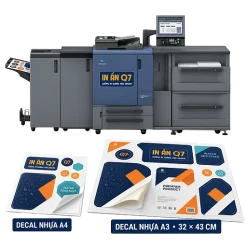
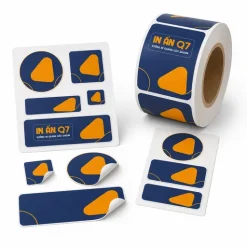
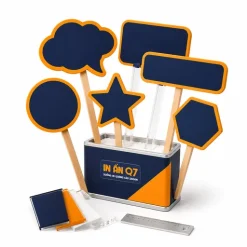
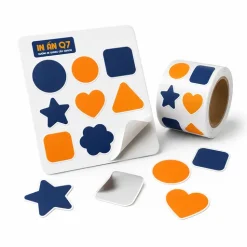
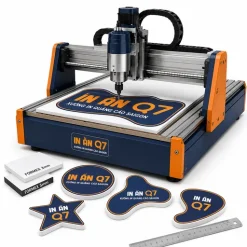
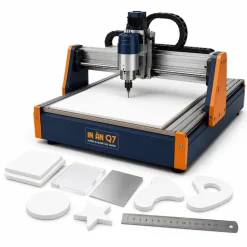
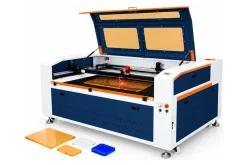
Die-cutting · CNC cutting · Shaped labels
- If you can draw a separate cut line, name the layer CUTLINE and In Quảng Cáo Q7 will recognize it immediately.
- If you can't, no problem — send a sample image with a description and In Quảng Cáo Q7 will draw the cut line.
- The smallest details should be at least 5mm wide for decals and 1cm for Formex; anything smaller breaks easily when peeled.
- Let the print extend 2–3mm beyond the cut line so a slightly off cut doesn't show white edges.
- When several label designs share one file, leave about 4mm between them for easier die-cutting.
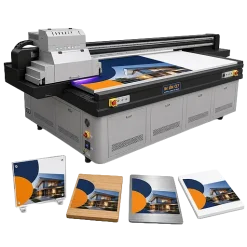
Flatbed UV printing · Formex · Acrylic · Wood · Glass
- Tell In Quảng Cáo Q7 whether the material is light or dark, and In Quảng Cáo Q7 will choose the right number of print layers.
- Printing on glass viewable from both sides needs a special technique — tell us in advance and In Quảng Cáo Q7 will prepare the file.
- Note any areas you want left white or unprinted, and In Quảng Cáo Q7 will separate the layers when preparing the file.
- If you bring your own material, measure the actual size again; pre-cut sheets are often a few mm off.
Eight things In Quảng Cáo Q7 often has to remind customers about
These are settings design software often defaults to that differ from print requirements. In Quảng Cáo Q7 can handle most of them, and only a few cases need you to resend the file — knowing in advance saves a round of messages.
What to watch for with AI-made files
More and more customers create designs with AI, and that's a good thing — ideas come fast, and backgrounds and illustrations look great. In Quảng Cáo Q7 accepts all these files. There are just eight points to know in advance, because an AI file that looks good on screen doesn't always print well.
Not sure if your AI file will print well? Just send it first. In Quảng Cáo Q7 checks it for free and replies within about 30 minutes during working hours, before you pay anything.
Send files to In Quảng Cáo Q7
- Via Zalo — fastest, handles large files and lets us talk directly when edits are needed.
- Via email — best when you need a record or the file goes with a contract.
- Upload when ordering online — upload the file when you add the product to the cart.
- Google Drive link — for files over 25MB, remember to allow viewing for anyone with the link.
Name your file like this CustomerName-Product-Size.pdf, for example
QuanAnBaHai-Standee-60x160.pdf. In Quảng Cáo Q7 receives many orders every day, so a clear file name
prevents mix-ups.
What In Quảng Cáo Q7 does after receiving your file
Check bleed, color mode, resolution and fonts. If there are errors, we tell you right away so you can fix them.
Confirm the finished size, material, quantity and delivery time before printing.
Printing, finishing and completion at the workshop. Urgent orders in common sizes can be ready the same day.
A small note: In Quảng Cáo Q7 can check the technical side of a file, but only you know whether the content is right. Before confirming, please re-read the names, phone numbers and prices — these are the three places most often wrong that In Quảng Cáo Q7 cannot catch for you.